Skip to content
Cleaning Operator

Get paid faster

Card payments for cleaning companies

The clean is done, but getting paid for it is another job entirely.Customers save a card, pay cash or settle an invoice, and you collect everything due from one office queue.

14-day free trial on every plan. Cancel anytime, no lock-in contract.

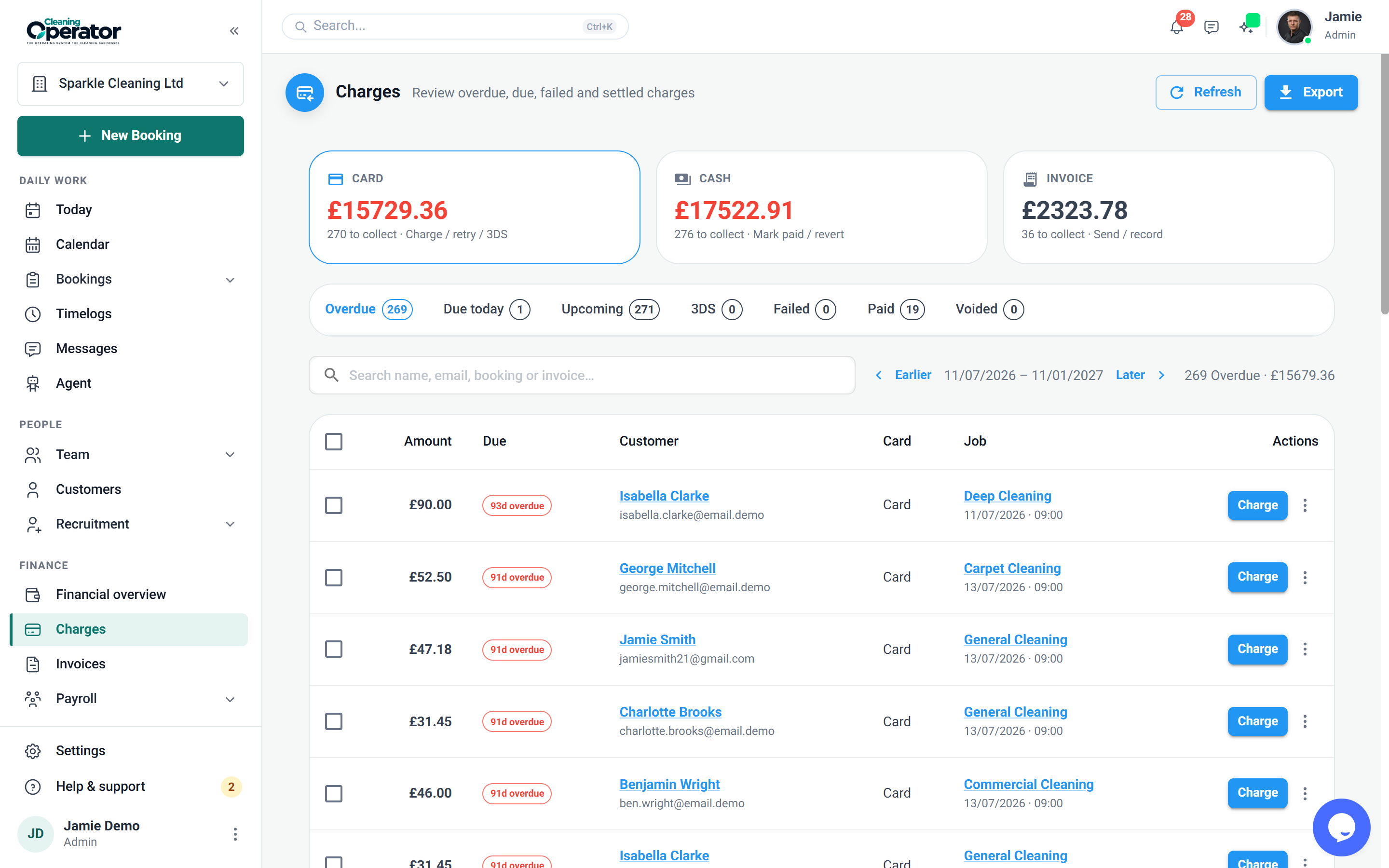
Screenshot of Bookings — Charges

What is included

4 features in Payments.

The problem each one solves, then how Cleaning Operator fixes it, with the screens and settings named.

  1. Stripe (card payments)

    Connects your Stripe account so customers can save cards and you can charge them.

    The problem

    Card numbers get read out over the phone and written on a notepad, which never feels right.

    With Cleaning Operator

    Customers save their own card, so you charge it after the clean without writing anything down. It runs through your own Stripe account.

    • Settings → Payment Settings, also under Integrations → Stripe
    • Enable Stripe Payments on/off, and Stripe Mode of Test or Live
    • Test Connection confirms Stripe is working
  2. Add-card form (public / request a card)

    Lets a customer save a card on file without a full booking, through a link or an embedded form.

    The problem

    Some of my oldest regulars never left a card, and asking for it over the phone feels awkward.

    With Cleaning Operator

    Saving a card no longer needs a booking. Send a link from their Billing tab, or embed the form on your website in your colours.

    • Direct link, or a copy add-card link from a customer's Billing tab or from Charges
    • Appearance options: Show logo, Show Stripe badge, Show terms, button and background colours, form width
    • Can also be embedded: Settings → Payment Settings → Embed Add Card
  3. Charges workbench (admin)

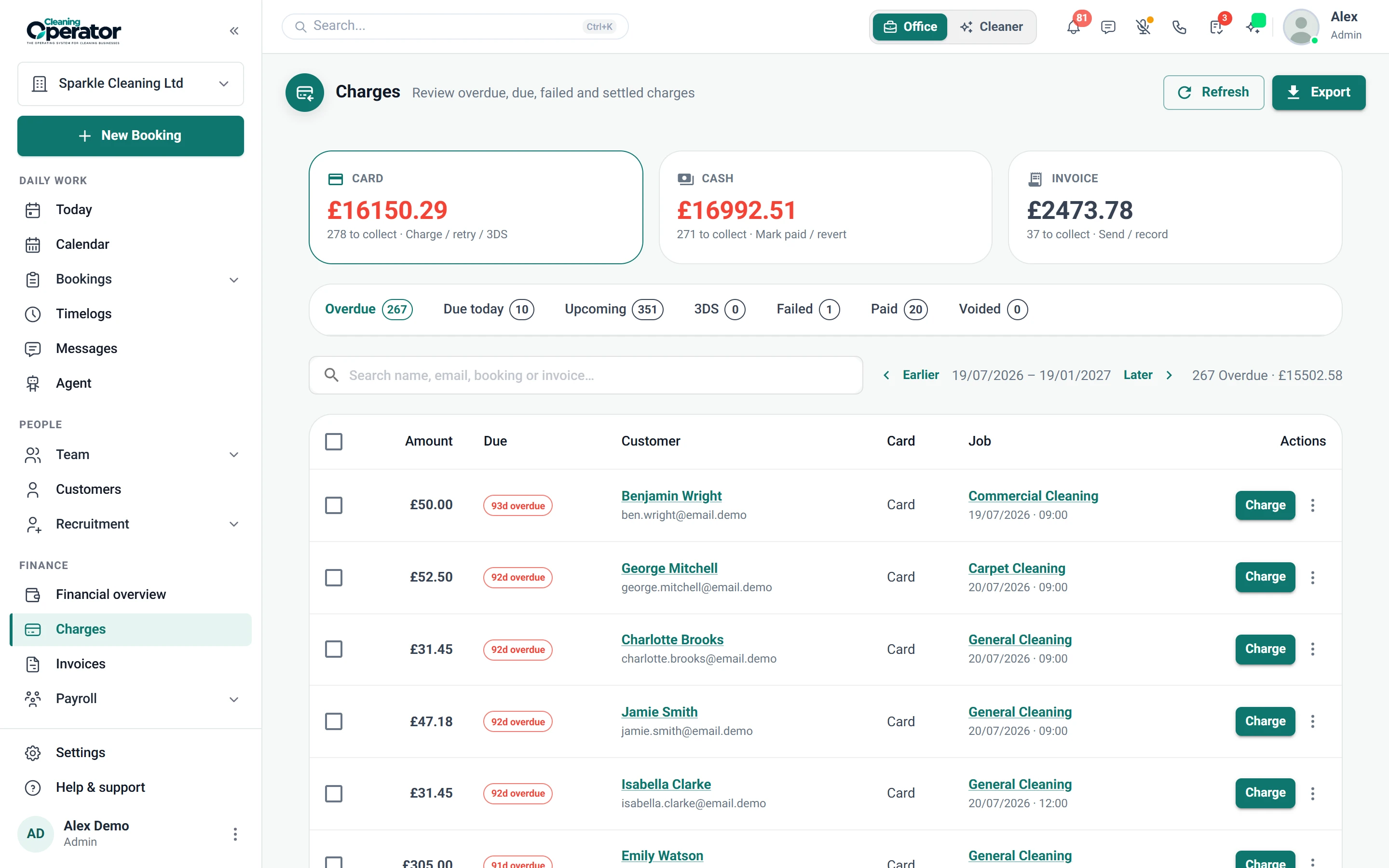
    The office queue for money against bookings: take payment, retry, refund, mark cash paid, send invoices and request cards.

    The problem

    Chasing card payments after the visit and tracking who paid cash takes hours every week.

    With Cleaning Operator

    Everything owed sits together, split by card, cash and invoice. Charge in bulk, retry a failed card, refund or mark cash paid.

    • Bookings → Charges, worked by Card, Cash or Invoice
    • Charge in bulk and work a time window of months
    • Tick notify the customer on a charge, retry or refund to send an email or SMS
    • Email works on every plan; SMS needs the Business plan or above
    Screenshot of Bookings — Charges
  4. Invoice as a booking payment method

    Staff can choose Invoice on a booking; the booking is marked paid when the customer pays the invoice.

    The problem

    Commercial clients pay on invoice, and matching each payment back to the right booking is a job in itself.

    With Cleaning Operator

    Bookings are marked paid when the customer pays the invoice. Pick Invoice as the payment method, and it's generated on your invoice schedule.

    • An invoice is generated on your invoice schedule
    • Separate from the Cash and Card checkboxes on customer-facing forms
    • Turned on under Invoice Settings

Get paid faster

More for getting paid.

12 — Invoices

Invoices: See Invoices features

Send branded bills, remind people who have not paid, and let them settle from a link.

  • Invoice list and editor
  • Invoice settings

13 — Payroll

Payroll: See Payroll features

Pay from the hours they actually worked — then send payslips to the app.

  • Run payroll
  • Payroll history and payslips

14 — Reports

Reports: See Reports features

See what you earned, what you paid, and what changed — without exporting five spreadsheets first.

  • Financial report
  • Customer reviews report
  • Booking changes log

Start today

Run the whole cleaning company from one system.

Online booking, the live team calendar, the mobile app, card payments and invoices, and payroll from clocked hours.

14-day free trial on every plan. Cancel anytime, no lock-in contract.