Skip to content
Cleaning Operator

Run your team

Cleaner dashboard in the mobile app for cleaning teams

Cleaners ring the office all morning for addresses, door codes and what's next.Each cleaner opens the Cleaning Operator app and lands on their own dashboard: today's jobs, addresses, notes, checklists, clock-in, photos, chat with the office and their payslips.

14-day free trial on every plan. Cancel anytime, no lock-in contract.

Screenshot of Cleaner dashboard — Job details

What is included

13 features in Cleaner dashboard.

The problem each one solves, then how Cleaning Operator fixes it, with the screens and settings named.

  1. Sign in and workspaces

    Cleaners sign in with the email set up for them and land on the Cleaner dashboard. Office staff who sign in to the same app land on the Office dashboard instead.

    The problem

    When cleaners share one login, I can't tell who actually clocked in at which job.

    With Cleaning Operator

    Each clock-in belongs to the right cleaner, because everyone signs in with the email you set up. People working for two Cleaning Operator companies switch between them.

    • Sign in with the email you created or they registered with
    • The app opens the dashboard for your role: Cleaner or Office
    • Switch Workspace for people who work for more than one Cleaning Operator company
    • Sign out is on the More tab
  2. My jobs (Jobs tab)

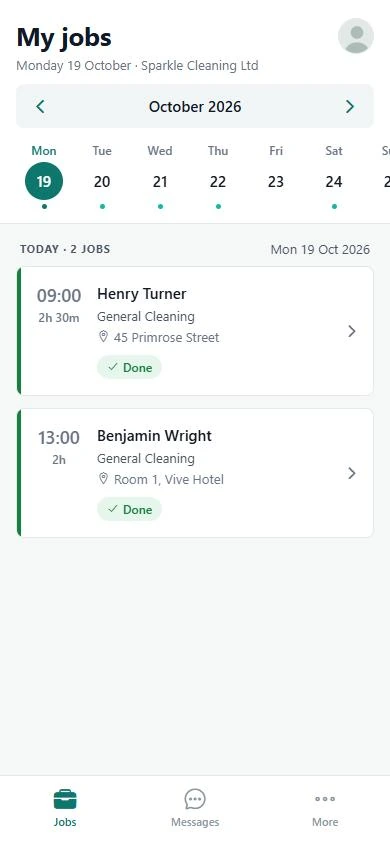
    The Jobs tab opens on a week strip and the day's jobs, with each job's time, customer, address and status.

    The problem

    Cleaners text me before every shift asking where they're going today.

    With Cleaning Operator

    The day's jobs are the first thing your cleaners see, each with its time, address and status. One tap opens the full job.

    • Pick any day in the week strip to see its jobs
    • Each job shows its status, or an arrive-by time when the office sets an arrival window
    • Open a job for details
    Screenshot of Cleaner dashboard — Home
  3. Job details

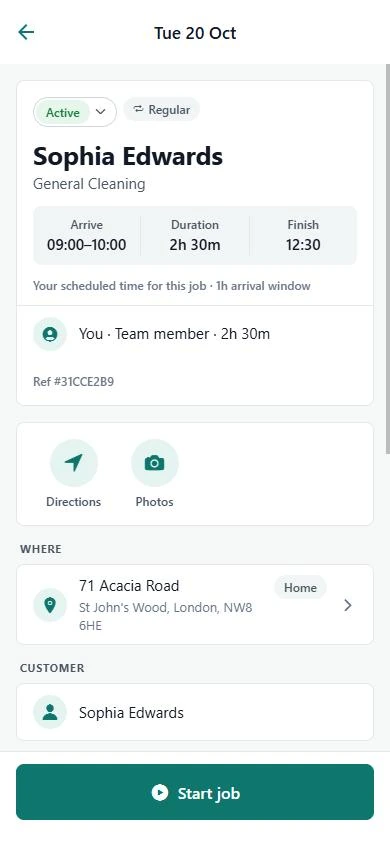
    Everything for one visit: customer name, address, service, time, notes, clock-in, checklists, photos and directions.

    The problem

    The customer asked for the bedding to be changed, and the cleaner never heard about it.

    With Cleaning Operator

    Everything for the visit sits on one screen: address, service, time, your notes, directions and the checklist, which can block clock-out until it's done.

    • Clock in and out, with optional required photos; same-day and re-clock rules apply
    • Checklists: ticks, photos and signatures; clock-out can be blocked until they are done
    • Get Directions can text the customer an approximate arrival time when ETA SMS is on and the job is today
    • The arrival-time text needs SMS, which is on the Business plan or above
  4. Available jobs

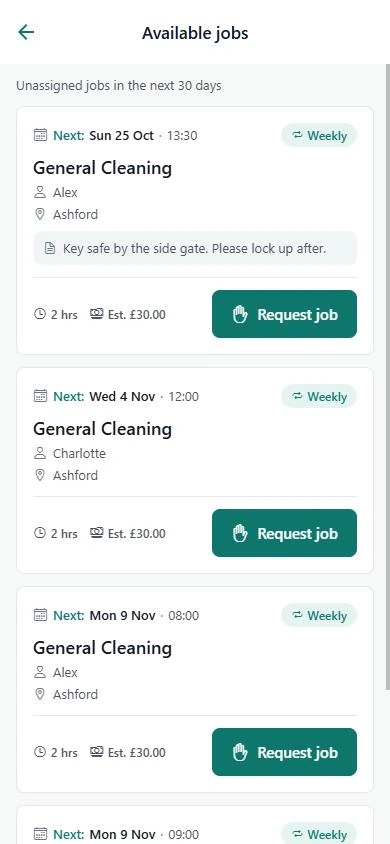
    Browse unassigned visits and request them, instead of waiting for the office to ring around.

    The problem

    Cleaners who want extra hours have to keep asking me if anything's come up.

    With Cleaning Operator

    Cleaners browse open visits and request the ones they want, and clashing jobs can be hidden. Turn approval off and requests assign instantly.

    • More → Available Jobs, hidden if Available Jobs is off
    • With Require Approval on, the office approves the request; with it off, the job is assigned straight away
    • Conflicting jobs can be hidden
    Screenshot of Cleaner dashboard — Available jobs
  5. Messages

    Chat with the office and related customer threads.

    The problem

    Broken vases and missing keys get reported to me by text, and nobody else in the office sees them.

    With Cleaning Operator

    Job messages sit in a thread the whole office can see. Cleaners message the office from the app, and can search past conversations.

    • Search conversations and pull to refresh
    • Unread badges on the Messages tab
    • Job messages sit in a thread the rest of the office can see
  6. Profile

    Name, photo, contact details and an optional hourly rate badge.

    The problem

    Someone always asks what their hourly rate is, and I don't want them editing their own record.

    With Cleaning Operator

    The profile shows their details, plus their hourly rate only if you choose. They can change their photo, but not the fields you keep private.

    • Can change the photo
    • Shows an hourly rate badge only if you show it
    • Cannot change office-only fields you keep private
  7. My availability

    Set working days and hours, Monday to Sunday, which feed Smart booking.

    The problem

    Days off get mentioned in passing, and I've booked the cleaner in before I remember.

    With Cleaning Operator

    Working days and hours come from the cleaners themselves, and Smart booking uses them. Switch off editing if you'd rather they only view.

    • On or off, with from and to times for each day
    • Editable only when Allow Schedule Modifications is on; otherwise read-only
    • Time off here is the calendar Smart booking uses
  8. My reviews

    Ratings and comments from completed jobs.

    The problem

    Passing on a customer complaint turns into an awkward chat because the cleaner hears it for the first time.

    With Cleaning Operator

    Feedback is in front of your cleaners before you talk. Switch on Show Own Rating and they see ratings and comments from their completed jobs.

    • Shown when Show Own Rating is on
    • Feedback is in front of them, so a later conversation is not a surprise
  9. Payslips

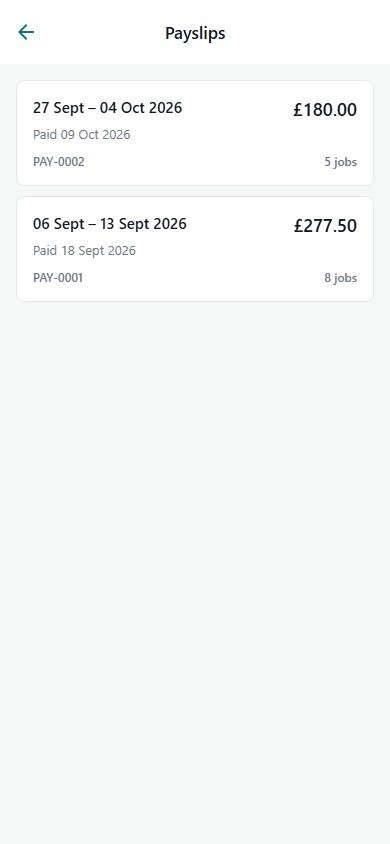
    The list of pay periods, amounts and downloads from payroll runs you sent.

    The problem

    Business and above

    Every payday, cleaners message me for their payslip, and I'm emailing PDFs one by one.

    With Cleaning Operator

    Payslips land in the app when you send them from payroll. A push takes each cleaner straight to their pay periods, amounts and downloads.

    • Menu item appears when Show Provider Payment is on
    • A push from Send payslips opens this screen
    Screenshot of Cleaner dashboard — Payslips
  10. More tab

    A tab with Available jobs, My availability, My reviews, Payslips, Notifications, Switch workspace and Sign out, each shown only if allowed.

    The problem

    Cluttered apps get ignored, or cleaners tap into things they shouldn't see.

    With Cleaning Operator

    The jobs screen stays about today's work. Everything else sits on one tab, and each item only appears if you've allowed it for that cleaner.

    • Each item shows only if that feature is allowed for the cleaner
    • Keeps the jobs screen about today's work
  11. Job photos in the app

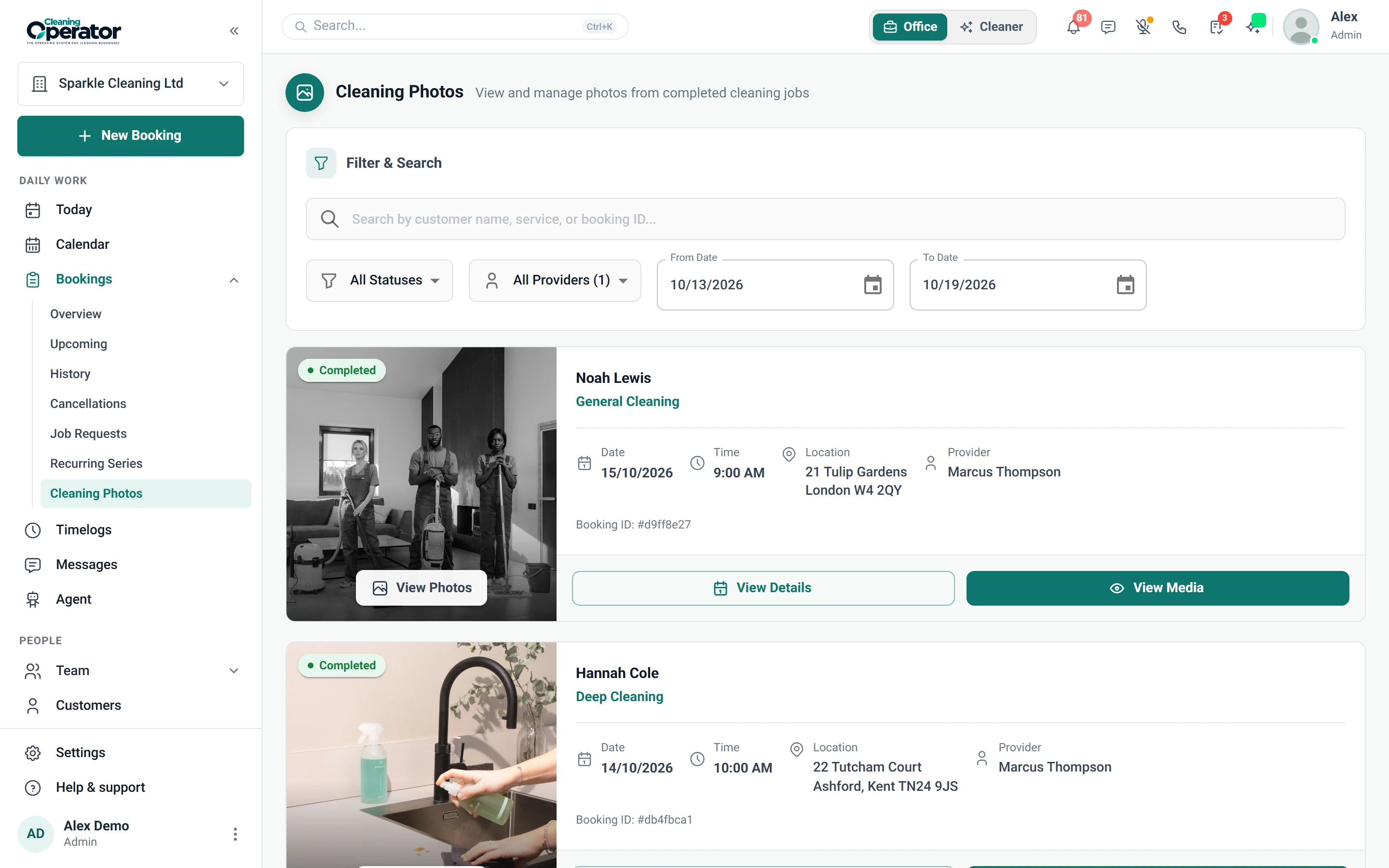
    Cleaners add cleaning photos to a job, in addition to clock-in, clock-out and checklist images.

    The problem

    A customer insists the oven wasn't cleaned, and all I have is the cleaner's word.

    With Cleaning Operator

    Before-and-after proof sits on the booking itself. Cleaners add photos from the job, and you check them in Bookings under Cleaning Photos.

    • Opened from job media on the job
    • The office reviews them under Bookings → Cleaning Photos
    • Before-and-after proof attaches to the booking
    Screenshot of Bookings — Cleaning Photos
  12. Notifications

    Cleaners choose which alerts they receive on their own device.

    The problem

    My team either misses new job alerts or gets so many pings they mute everything.

    With Cleaning Operator

    Each cleaner sets their own alerts on their phone. Push, in-app and email can each be turned off, and they keep the job pushes they need.

    • Turn push, in-app and email alerts on or off
    • Choose which job pushes they still want
    • Payslip and job-assignment pushes arrive on the phone
  13. Web cleaner portal (optional)

    A simpler browser version of the Cleaner dashboard, for when a phone is not available.

    The problem

    Not every cleaner has a smartphone, so a few still get their jobs by text from me.

    With Cleaning Operator

    A browser is enough for cleaners without the app. Turn on the web portal for their schedule, calendar, available jobs and profile.

    • Schedule, calendar, available jobs and profile
    • Same visibility rules as the app
    • Used when the office has it enabled

Run your team

Related features.

09 — Cleaners

Cleaners: See Cleaners features

Keep your team, their contracts and documents, availability, and what they see in the app in one place.

  • Cleaner list, add, and profile
  • Pending verification
  • Availability and absences (office)

10 — Recruitment

Recruitment: See Recruitment features

Let people apply, score the forms, and hire into the same system they will work in.

  • Applicants
  • Recruitment settings
  • Cleaner self-registration (simpler path)

01 — Booking

Booking: See Booking features

Take the call yourself, let existing customers book online, or put a booking form on your website — same services, prices, and availability everywhere.

  • Admin booking form
  • Public booking form
  • Customer portal booking form (self-service)

Start today

Run the whole cleaning company from one system.

Online booking, the live team calendar, the mobile app, card payments and invoices, and payroll from clocked hours.

14-day free trial on every plan. Cancel anytime, no lock-in contract.